Bring the little things you do on stream to buttons you can find at a glance. Spend less time searching for windows, and more time talking, showing, and creating.
01STREAM CONTROL
OBS control. One tap away.
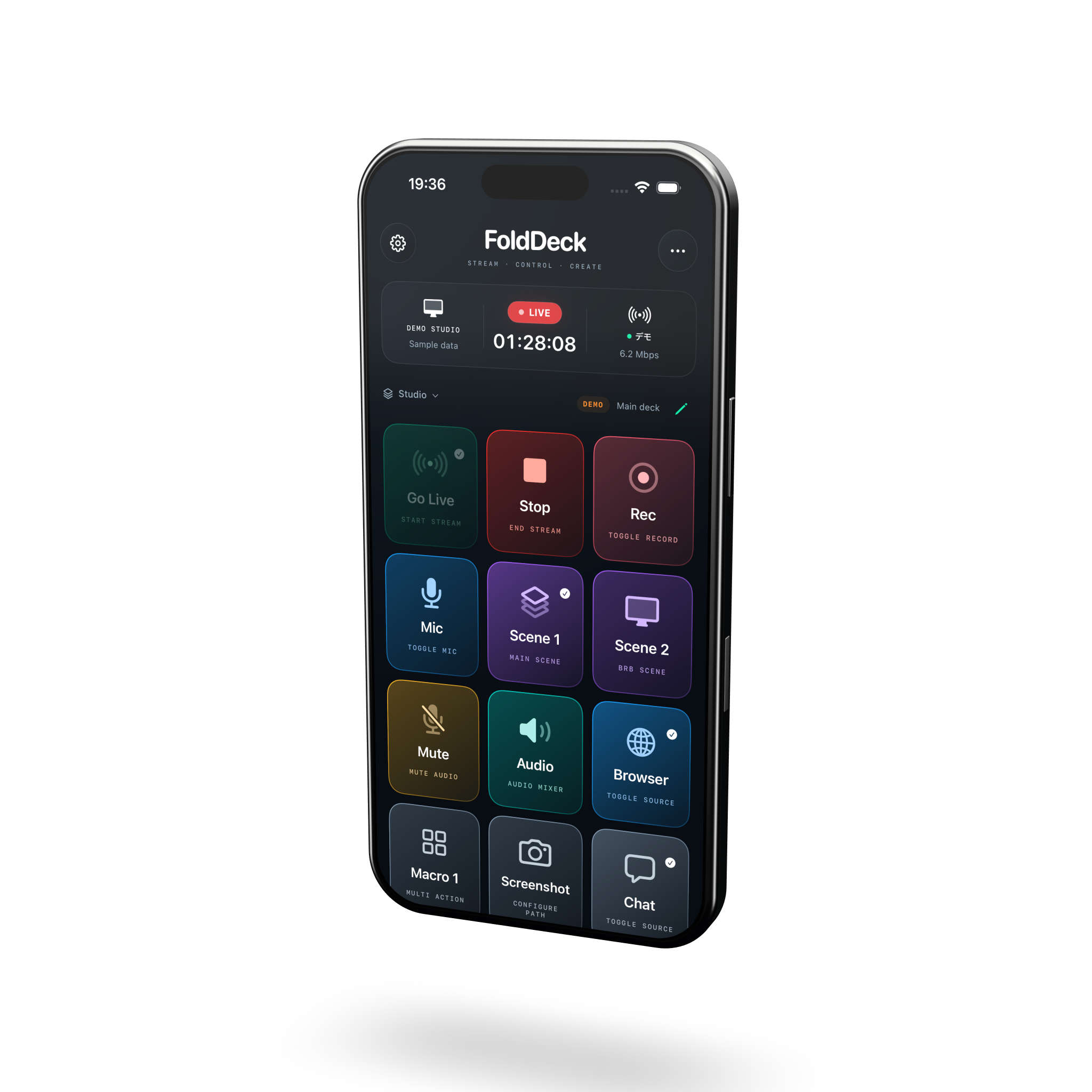
Go live, start recording, switch scenes, or mute your microphone. Keep your most-used OBS actions right where you need them.
Scene 1
Scene 1 Scene 2 +
Control scenes, audio, and sources
See stream status and audio levels
Set up a connection with the OBS QR code
02YOUR OWN WORKFLOW
Your whole routine. One button.
Switch the scene, wait a moment, and turn on the microphone. Put actions in sequence to create a macro that works the way you stream.
YOUR STARTING SCENEStart my stream
1Switch to Scene 1
2Wait 0.3 seconds
3Turn on the mic
1 TAP · 3 ACTIONSAn example macro
Run multiple actions in sequence
Customize colors, icons, and labels
Hold and drag to rearrange your deck
03BEYOND YOUR STREAM
Your computer. Part of your deck.
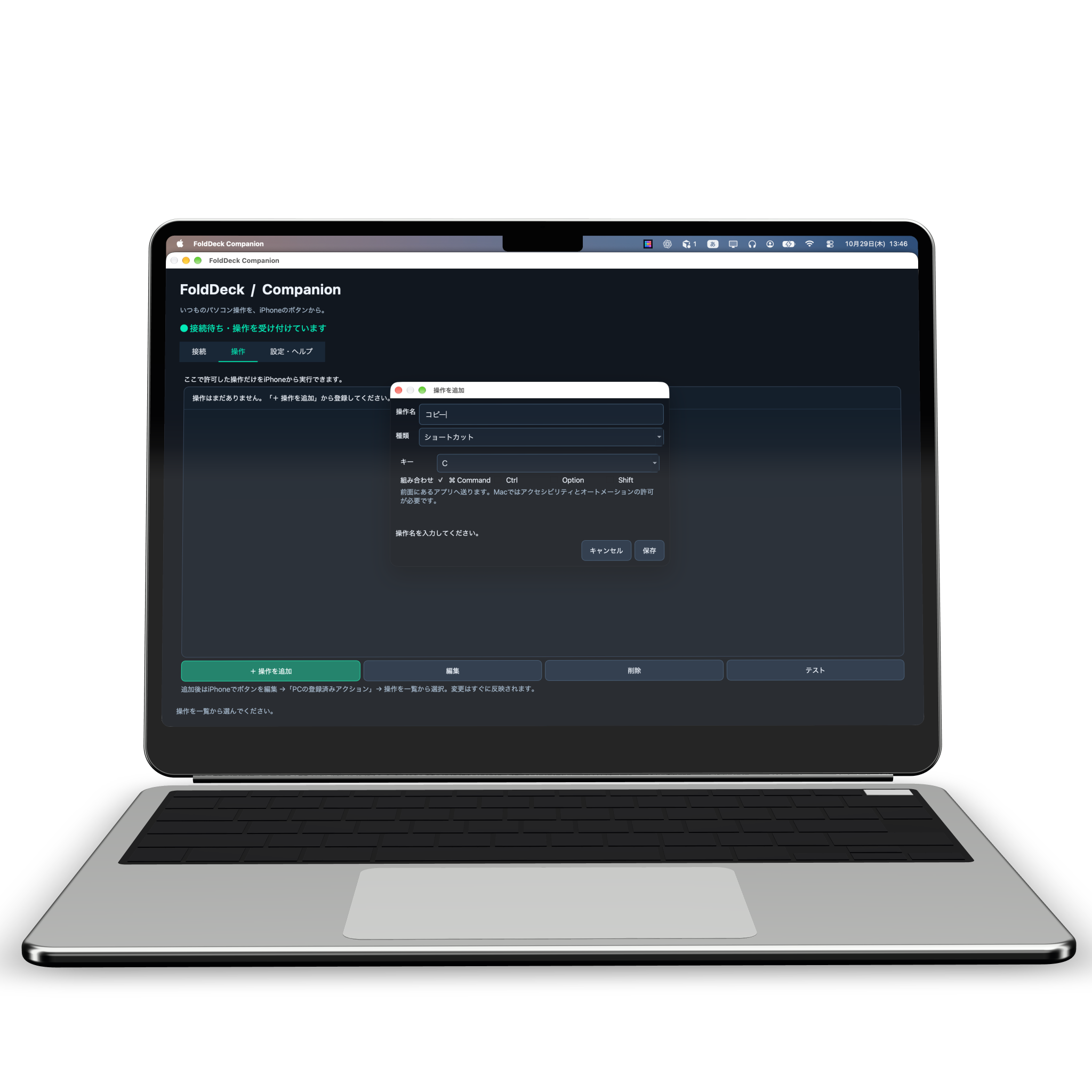
Use FoldDeck Companion to launch apps and run shortcuts from your iPhone. Build a set of controls for getting ready to stream and getting work done.
· · · · ·
Companion for Mac and Windows
Apps, websites, and keyboard shortcuts
Only run actions you allow on your computer
ONE DECK. EVERY FORM.
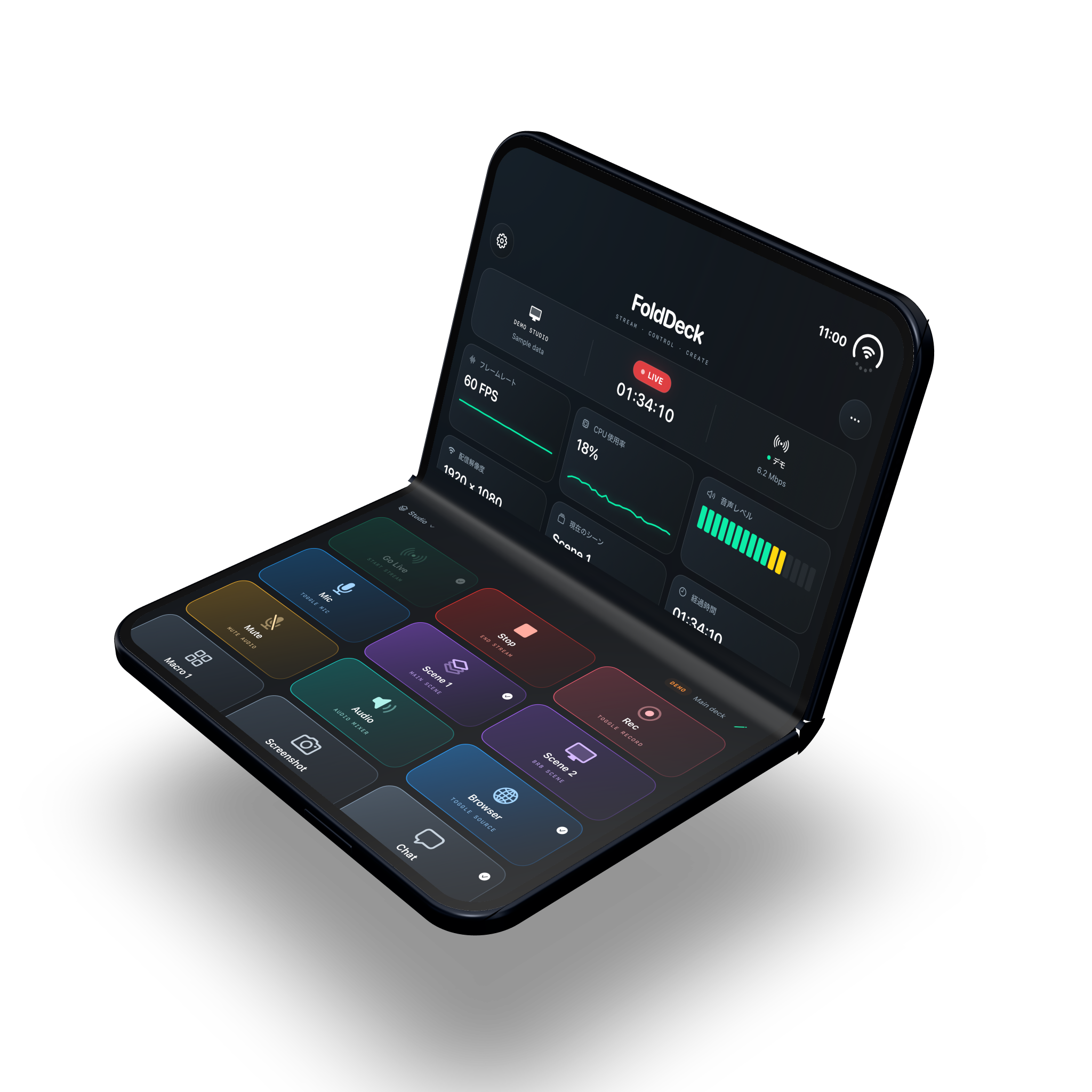
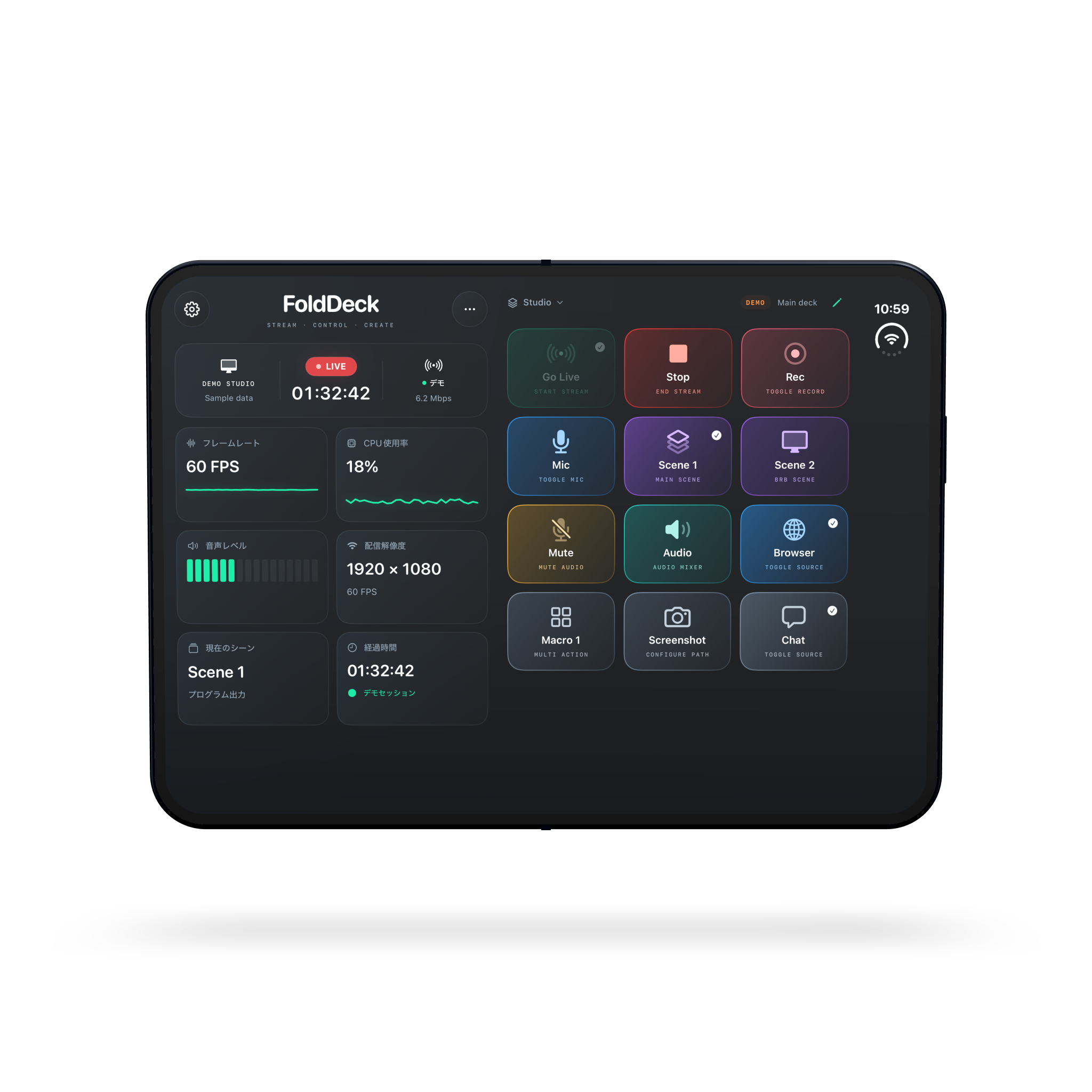
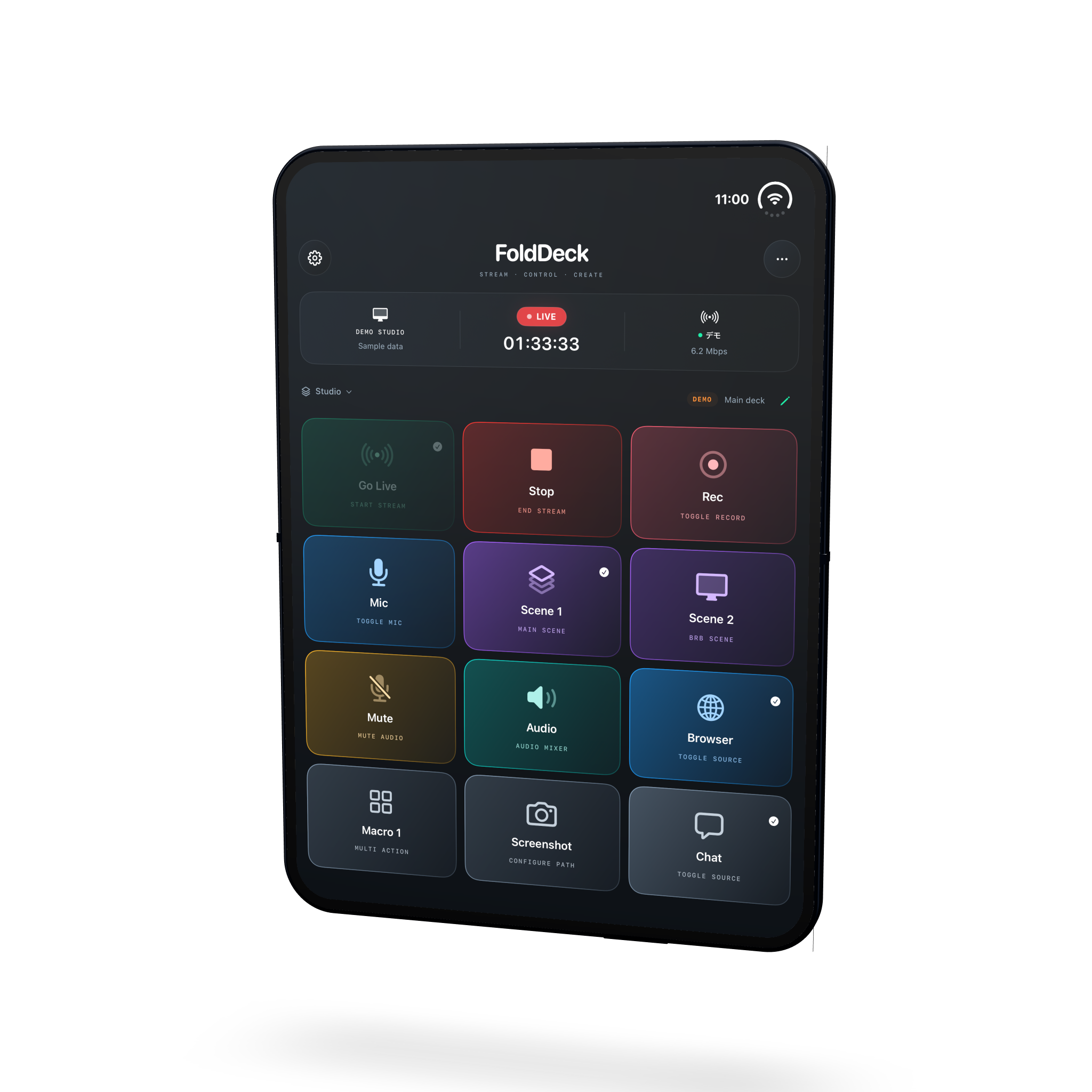
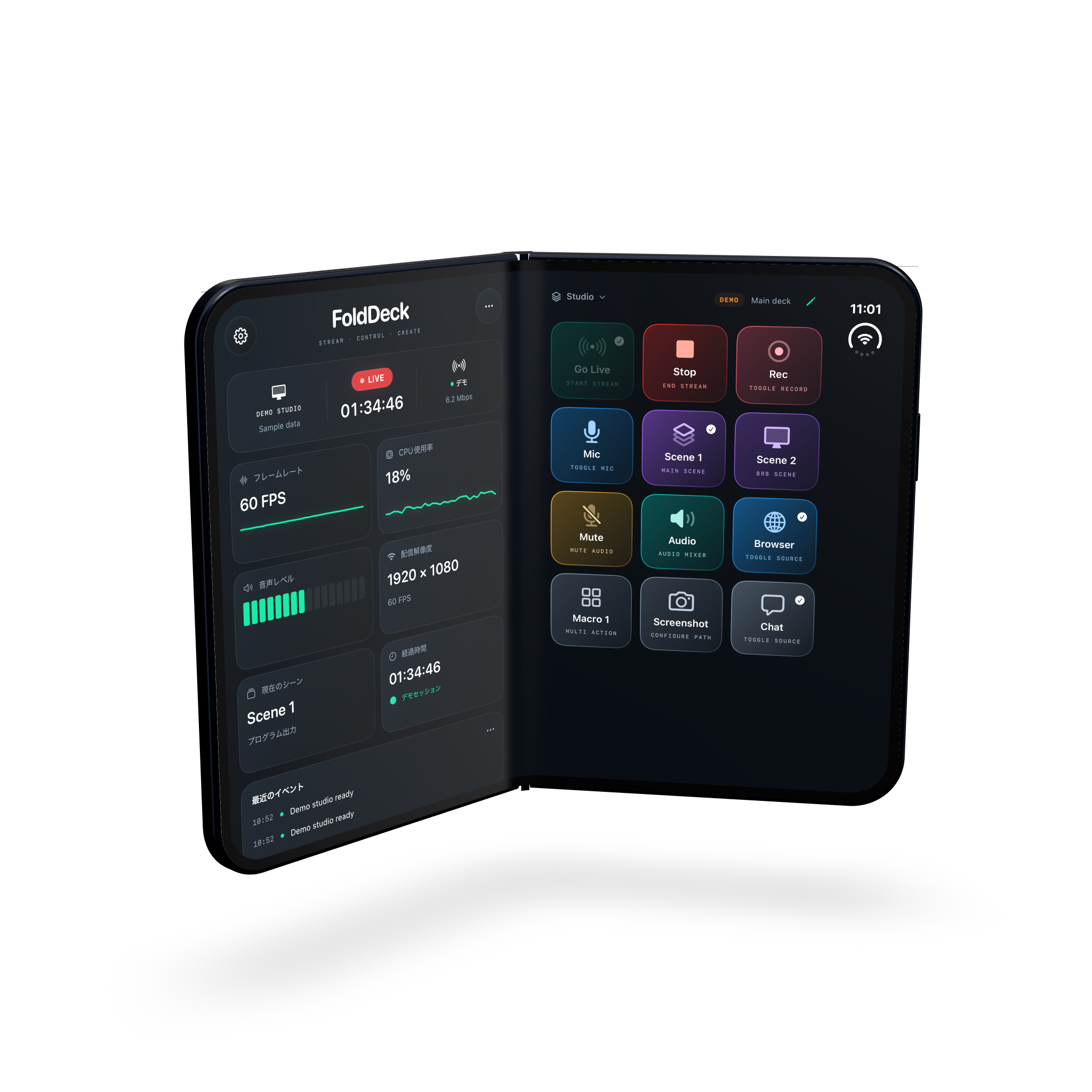
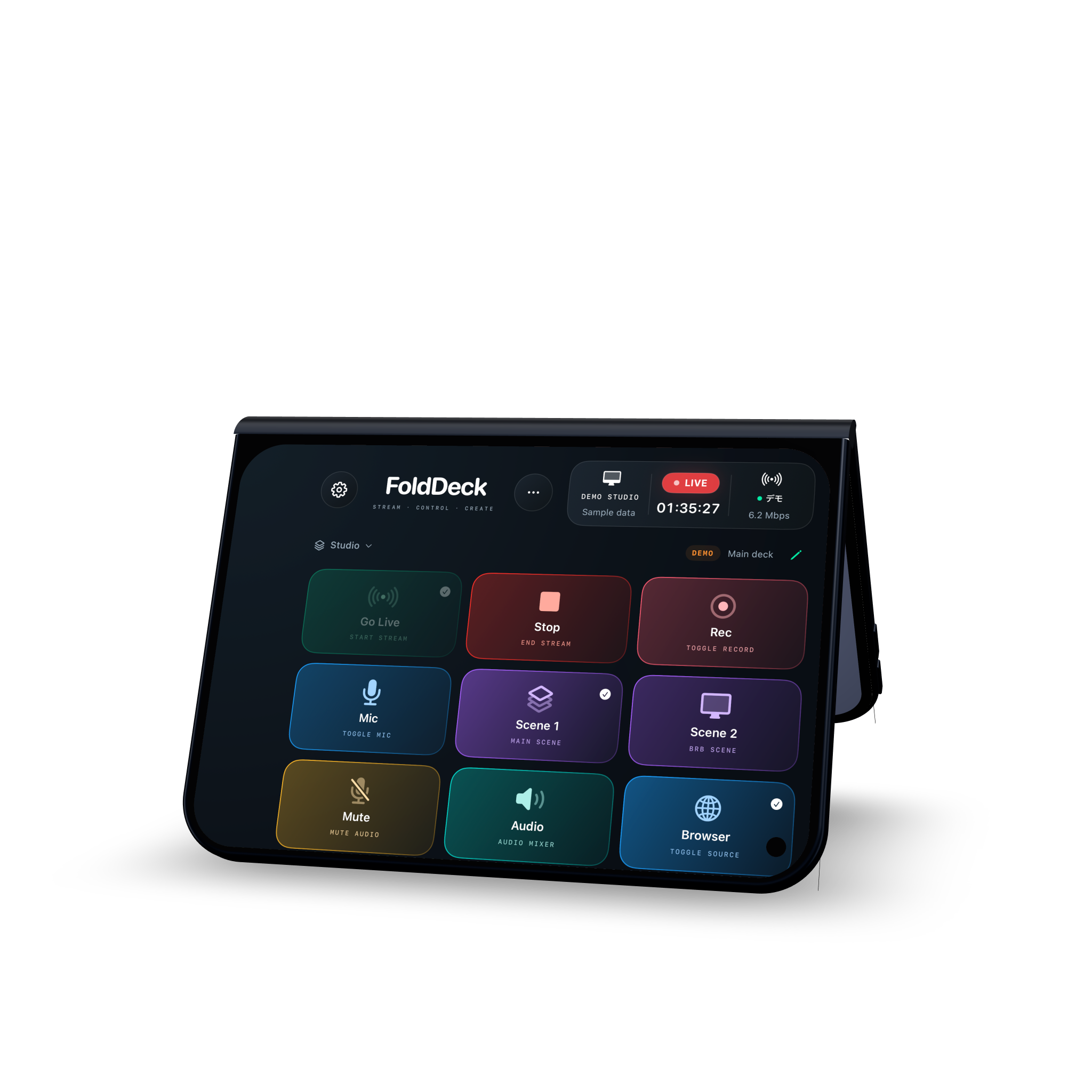
Layouts optimized for iPhone Duo. The right setup for every scene.
Layouts adapt to orientation and fold state, bringing your monitoring and controls together in a workspace that fits the way you use iPhone Duo.
Open · landscapeOpen · portraitPartially open · landscapePartially open · portraitClosed · landscape
Mockups show the app in development with sample data.
ALSO MADE FOR iPHONE
Your everyday iPhone. Your personal control deck.
FoldDeck is not limited to iPhone Duo. Use OBS controls, macros, and PC actions through Companion on a regular iPhone, too. Build your workflow around the phone you already use.
Bring Windows shortcuts and app launches to your fingertips. Japanese interface. This download is unsigned; Windows may show a warning or an unknown publisher when downloading or opening it.
Companion alone cannot provide iPhone remote control. Check the iPhone app’s availability. Organization policies may prevent the unsigned Windows app from running.
GOOD TO KNOW
A few things you might be wondering.
01Do I need Companion to control OBS?+
No. FoldDeck connects directly to OBS. Use Companion when you want to add computer actions such as launching apps or running keyboard shortcuts.
02Does it work on a regular iPhone?+
Yes. FoldDeck also works on a regular iPhone. On iPhone Duo, layouts adapt to fold state and orientation to make use of the larger workspace.
03Do I need to buy a separate controller?+
No. A compatible iPhone becomes your control deck. You will still need a computer running OBS or the apps you want to control.
04Where are connection details and passwords stored?+
Button layouts and connection settings are saved on your iPhone. OBS passwords and Companion tokens are stored in Keychain. Commands go directly to the connections you configure.
05Can I control a computer over the internet?+
FoldDeck is currently designed for devices on the same local network. Use a trusted network for your OBS connection.
06Can I download it now?+
Companion for Mac and Windows is available from this page. The Windows version is unsigned. Remote control requires the FoldDeck iPhone app, which is not yet publicly available.